LTC-OS is LeanTheCompany · Operational Spaces — the Space is the unit you work in, and the unit you buy.

An Operational Space is one business process, seen properly — its Value Compass, maps, Kaizen cards, problem-solving records and printable documents, all in one place. One Space per process. Add another Space for the next process. That is the whole system.
Create your first Space
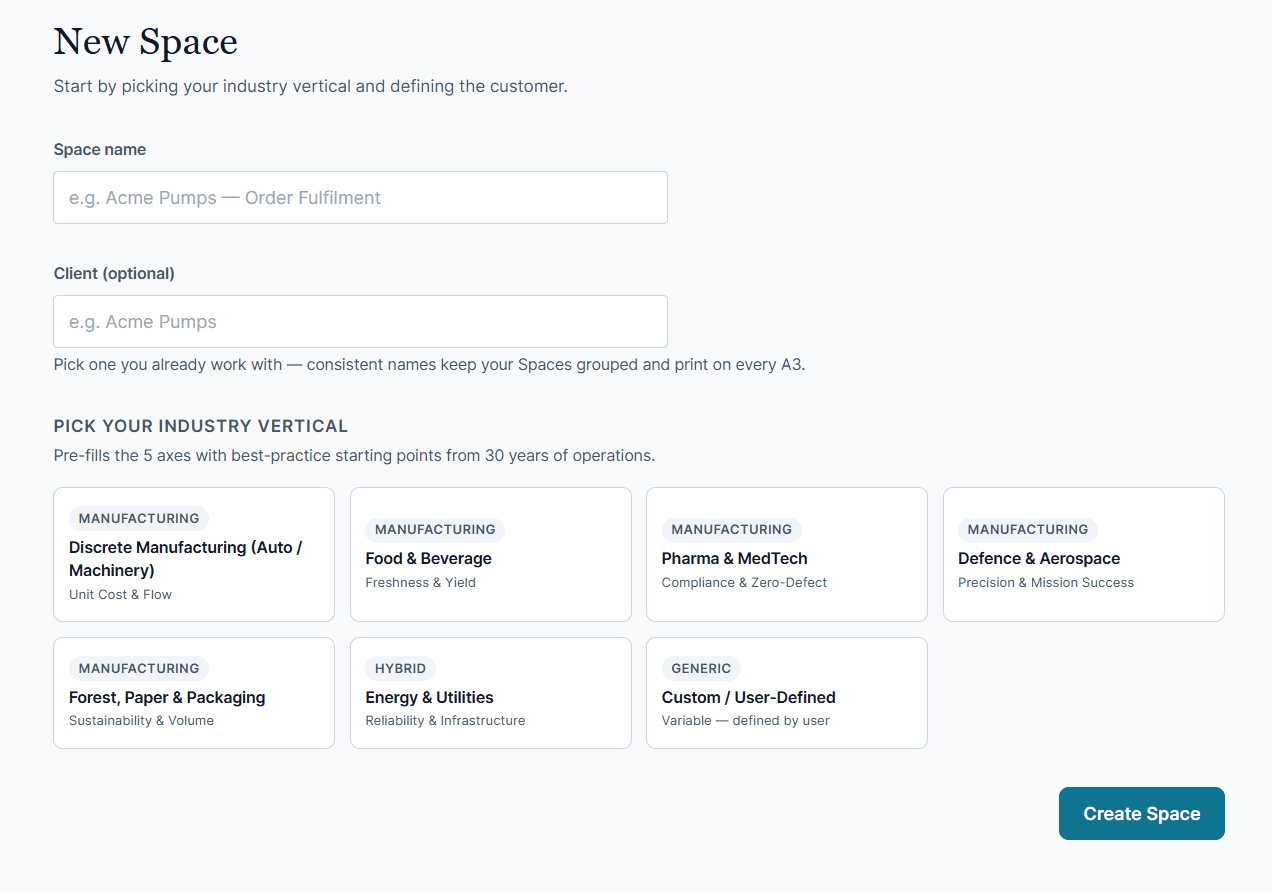
- From Operational Spaces, click + New Space.
- Give it a Space name — name it after the line or process (e.g. Acme Pumps — Order Fulfilment) — and optionally a Client. Consistent client names keep your Spaces grouped and print on every A3.
- Pick your industry vertical. This pre-fills the Compass's 5 axes with starting points from 30 years of operations — override any value to fit your reality. No vertical fits? Build your own axes: name the five things that define value for your customer.
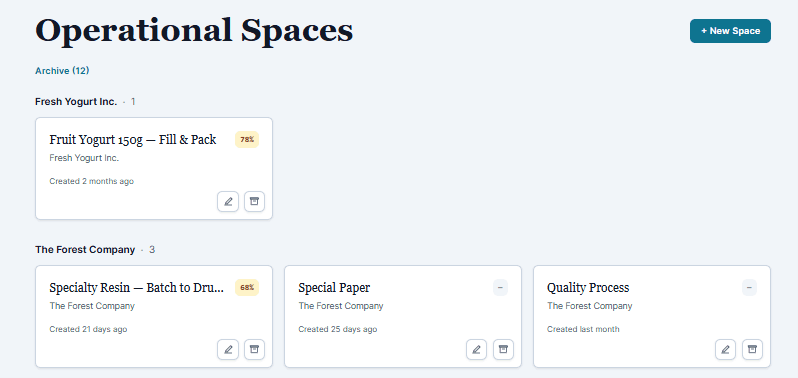
When you have added one or several Operational Spaces the hub will collect them and group them according to name of the client. It is possible to edit afterwards.
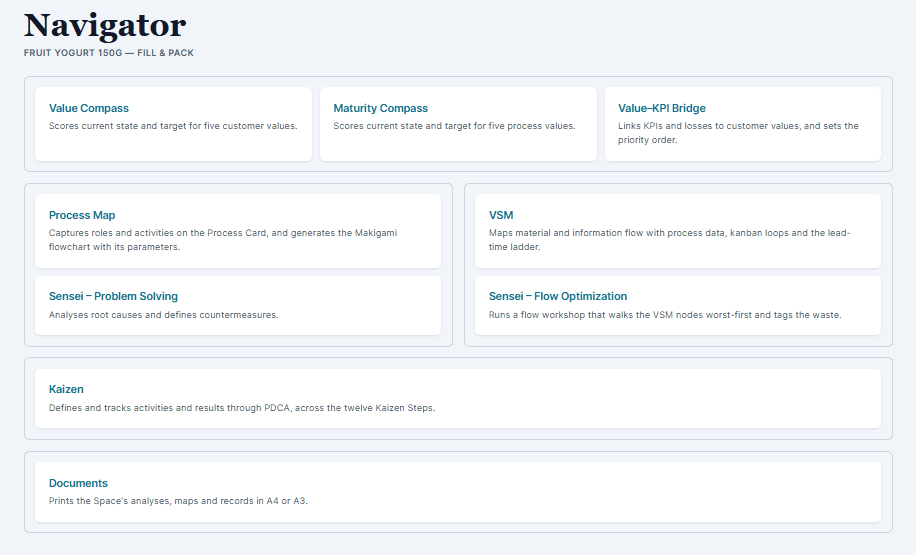
The Space opens on its Navigator
Open a Space and you land on its Navigator — not inside a module. The Navigator is the map of the Space: one card per module, each with its name and one line saying what you do there.
Where a card sits is part of the explanation. The top row is where you decide what matters — Value Compass · Maturity Compass · Value–KPI Bridge. Under it the two tracks stand side by side: the office and information track (Process Map · Sensei – Problem Solving) on the left, the material track (VSM · Sensei – Flow Optimization) on the right. Kaizen runs across underneath both, because both tracks land there. Documents close the page, because that is what the whole Space prints.
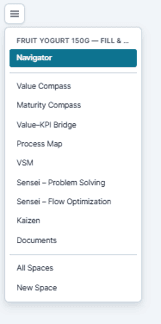
The Space menu (top-left) available on every page holds the same nine modules in the same order, with Navigator as its own row at the top — that row always takes you back to this page. A module is named once: what the card says is what the menu says.
A Space doesn't get abandoned — it graduates
Your plan caps how many Spaces you can work in at once, not how many you can keep. When a process is good enough and stable enough to run without you, that Space is finished — so archive it:
- Open the Space card's menu and click Archive Space. It stays readable, printable and exportable, it stops counting against your plan, and you can bring it back any time. Nothing is deleted.
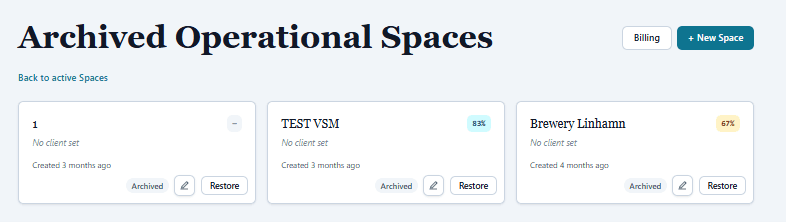
- Find archived Spaces under Archive on the hub; Restore re-opens one for editing.
- An archived Space opens read-only — you can read, print and export everything, and the banner offers Restore the moment you want to change something.

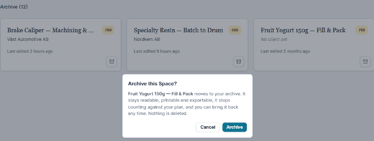
If you hit your active limit, the message says it straight: "All 5 of your active Spaces are in use. Archive a completed Space." Archive first — that's the system working as designed.